Help Center / Teams

Team coverage and roles

Applies to: Team and Compliance · Last updated October 9, 2026

See your team’s certifications at a glance, set what each role needs, and print the proof.

Set up a role

  1. Open Team in the left menu and go to Roles and requirements.
  2. Add a role, with a name and an optional description (for example SOC Analyst).
  3. Add requirements: pick a credential from the catalog or type one in (for example CMMC CCP).
  4. Choose whether it is required from every person in the role, or a minimum across the role (at least N holders).
  5. Tick who is in the role.

Read and sort the matrix

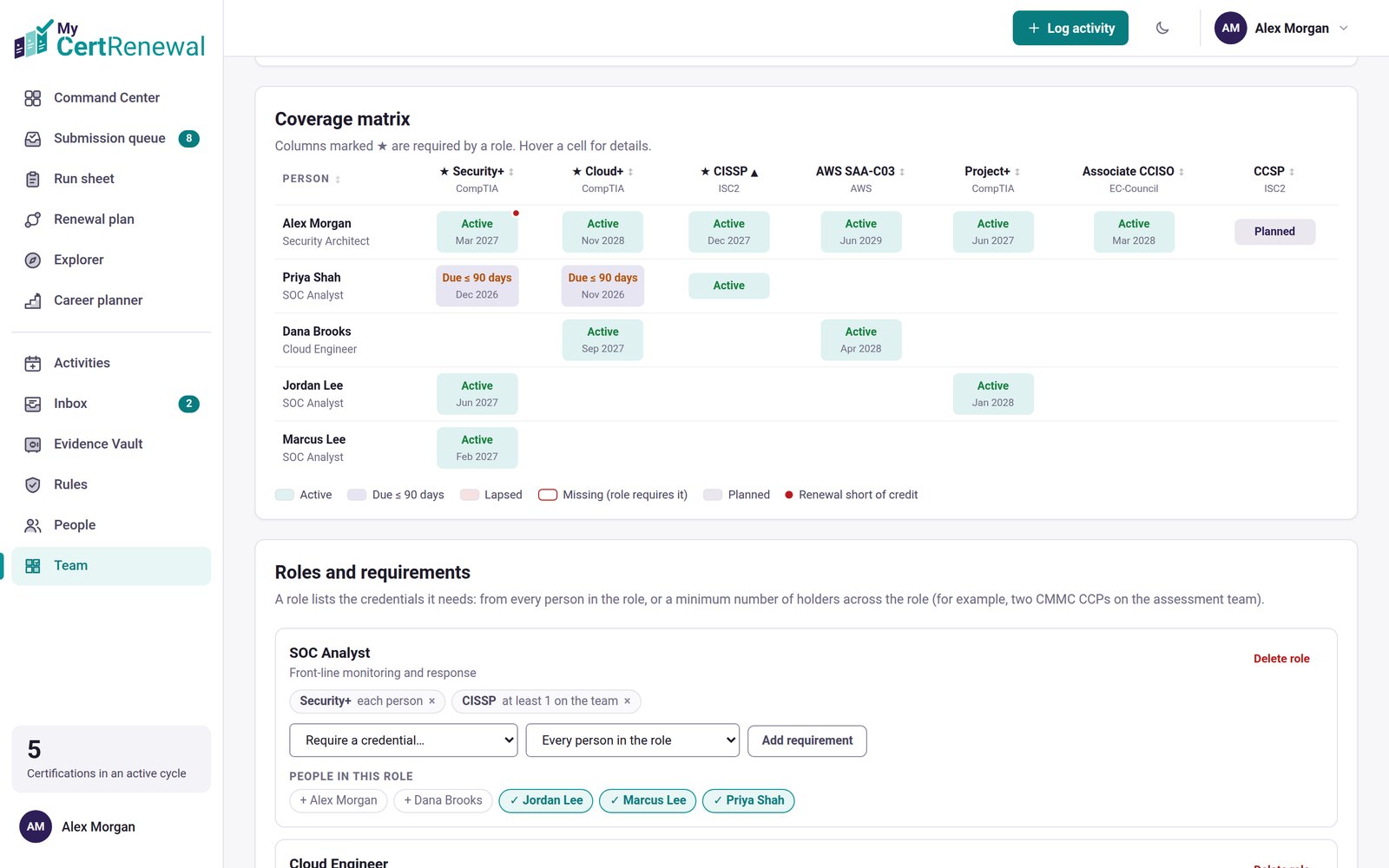
  • Click a certification column to sort holders first, soonest expiry first, then lapsed, planned and missing.
  • Click Person to sort by name. Job titles show under each name.
MyCertRenewal app screen: The coverage matrix, with role requirements below.
The coverage matrix, with role requirements below.

Share proof

  • Print / save PDF: branded, with page numbers. Settings and forms do not print.
  • Excel: the coverage matrix plus a Needs attention sheet.
  • CSV.

Good to know

  • Owners and admins manage roles.

Still stuck? Email [email protected] and tell us what you were trying to do.

Related articles

Track certifications for people without a login

Add evidence: the audit package

Create your account and choose a plan

Track it all in one place

MyCertRenewal lets you log an activity once and see the credit it earns at each certification it applies to. Start free with up to 2 certifications.

Certification renewal and CPE/CEU tracking for IT and security professionals who hold more than one certification. MyCertRenewal is a ConsultraCloud product.

MyCertRenewal is a ConsultraCloud product.

App screens show sample data. All trademarks belong to their respective owners. MyCertRenewal is not affiliated with or endorsed by ISC2, CompTIA, EC-Council, ISACA, Cisco, Credly, Amazon Web Services or Microsoft.

© 2026 ConsultraCloud. All rights reserved.