Applies to: all plans (requests come from Team and Compliance organizations) · Last updated October 13, 2026
Your employer can ask to see your certifications. You can keep certifications private, decide whether they open your evidence files, and stop at any time. Your records stay yours.
When you get a request
You get an email from [email protected]: “[Name] invited you to share your certification records with [Organization]”. The request also shows in the app in Profile > Sharing. If you don’t have an account yet, you get an invitation to create one first. A banner on your Command Center also links to it (Review the request).
Read the list of what the organization’s owners and admins will see, and what it keeps if sharing ends.
Choose what they can do. Let [Organization]’s admins add and update my records is on by default, for example so they can log company training for you. Let them open my evidence files is off by default.
Click Accept and share. Or click Decline. Nothing is shared until you accept.
What is shared, and what isn’t
Shared: your profile details (name, email, job title, company, photo, Credly profile link), certifications with status and expiry dates, renewal cycles and progress, activities and claims, deadlines and certifying-body portal checks.
Shared only if you allow it: your evidence files (certificates, receipts, screenshots).
Never shared: certifications you mark “Keep private from employers” (with their cycles and claims), your email intake address and Inbox, your notification settings and your AI reading setting.
Only the organization’s owners and admins see your records. Other members don’t.
Keep a certification private
Go to Profile > Credentials.
Click Edit on the certification.
Tick Keep private from employers and click Save changes. This option only appears on certifications in your own account.
Change what you share or stop sharing
Go to Profile > Sharing. Organizations you share with are listed under Shared with.
Tick or untick the two choices for that organization, then click Save changes.
To stop, click Stop sharing and confirm. The organization loses access right away, and you keep all of your records. The organization keeps a dated summary of your certification status on that day (certifications, expiry dates and renewal progress; no activities or files) for 3 years. You can see it in Profile > Sharing, under Past sharing.
Your plan while you share
While you share with an organization on Team or Compliance, your own account has Pro features at no cost to you. This continues for 90 days after sharing stops. After that your account returns to Free unless you choose a paid plan. You keep all of your records. If you already pay for a plan, your subscription doesn’t change.
Move your records to your own account
For members and admins of a Team or Compliance organization. If your records are kept in your organization’s account, you can move them to your own account and share them with the organization instead. They then stay with you if you change jobs.
On your Command Center, find “Make your records yours.” and click Move my records.
Read what happens, then click Move my records. Or click Cancel. Nothing moves until you confirm.
Your certifications, renewal cycles, activities, claims and files move with you. The organization’s owners and admins keep seeing your records and can still add and update them. Your evidence files stay private unless you choose to share them. You stop being a member of the organization’s account. You still use one of its seats, and Pro features stay free for you while you share, and for 90 days after. The organization’s owners and admins get an email that you moved. You can change what you share, or stop sharing, in Profile > Sharing.
For owners and admins: ask your staff to share
Team and Compliance plans.
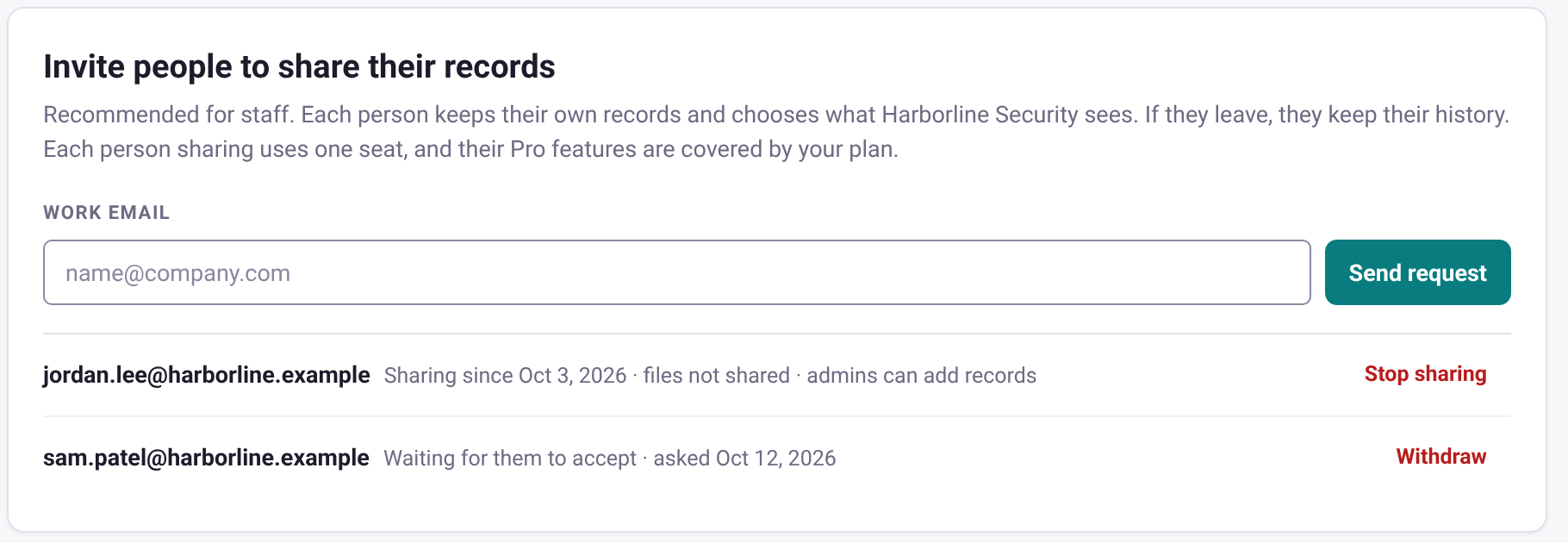
Go to Profile > Organization and find Invite people to share their records.
Enter the person’s work email and click Send request.
The list shows each request: waiting for them to accept, or sharing since a date, with what they allowed. Click Withdraw to cancel a waiting request, or Stop sharing to end one.
Invite people to share their records, in Profile > Organization. Sample data.
Each person who shares, or has a request waiting, uses one of your organization’s seats. People who share appear on your People page marked Shares their records, and in Team coverage. You can see their shared records and, unless they turn it off, add and update them. You can open their evidence files only if they allow it. You can’t change their profile. If no seat is free, Send request (and Invite a team member) stops and tells you to add seats in Profile > Plan and billing. A request you already sent can always be accepted. When sharing stops, the seat is free again.
When sharing stops, you keep a dated summary of the person’s certification status on that day, for 3 years. Find it in Profile > Organization > Invite people to share their records, under Past requests.
When a member moves their records to their own account, you get an email and the share list shows “Moved their records to their own account”. You still see their certifications, renewal progress, activities and claims, and you can still add and update their records unless they turn it off. You can open their evidence files only if they allow it. They now choose what you see and can stop sharing at any time. They still use one of your seats.
Good to know
If you share your records and sign in with a work email, MyCertRenewal shows “Keep your records if you change jobs.” on your Command Center and in Profile > Sharing. Click Change sign-in email (or go to Password & security) and use a personal email, so you keep access if you change jobs.
Only the person the request was sent to can accept it.
If the organization leaves the Team or Compliance plan, it can no longer see shared records, and the free Pro stops.
Anything the organization adds or changes shows in your own records. Records it adds from October 13, 2026 are marked “Added by” with the person’s name and organization.
Joining an organization’s account is different: records added inside an organization’s account belong to that organization, unless you move them to your own account.
Still stuck? Email [email protected] and tell us what you were trying to do.
Certification renewal and CPE/CEU tracking for IT and security professionals who hold more than one certification. MyCertRenewal is a ConsultraCloud product.
App screens show sample data. All trademarks belong to their respective owners. MyCertRenewal is not affiliated with or endorsed by ISC2, CompTIA, EC-Council, ISACA, Cisco, Credly, Amazon Web Services or Microsoft.