Applies to: All plans · Last updated October 9, 2026
Edit, undo or delete safely. Deleted something by mistake? Restore it from Recently deleted for 30 days.
Change an activity
Open the activity and select Edit details. If the activity already has claims and you change its hours or dates, MyCertRenewal asks Save changes to a claimed activity? first.
Existing claims, including submitted ones, keep the credits they were saved with.
If a claim should change too, open it and edit it yourself. Nothing you have already filed is changed silently.
Undo a status change
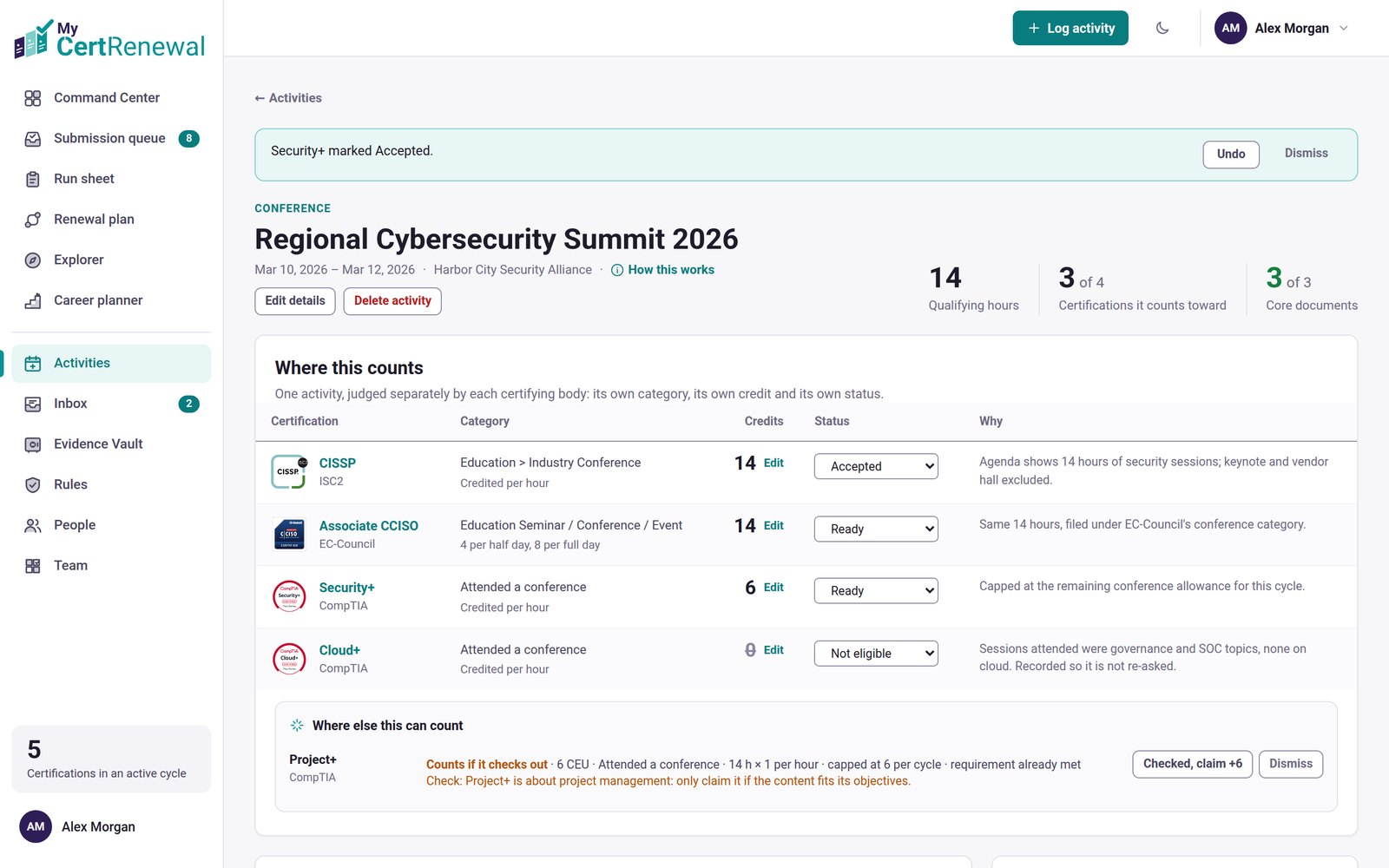
Right after you change a claim’s status, a notice appears with Undo. It stays until you dismiss it, make another change or leave the page. Undo puts the status and its dates back exactly as they were.
Some status changes ask first:
Accepted: only mark it accepted once the certifying body shows it as accepted in its portal.
Rejected, Not eligible or Withdrawn: the claim stops counting toward the cycle, and today is recorded as the decision date.
Mark N claims submitted (run sheet) and Move to (cycle page): you see the list first. Only do this once they are filed in the certifying body’s portal.
Other status changes save straight away.
An activity just marked Accepted, with Undo.
Delete something
A file: you are asked to confirm, then the file is removed from its activity or credential.
An activity: you see the activity, each claim with its credits and each file, which are deleted together. Nothing else in your records changes. If any claim is submitted or accepted, you type DELETE to confirm.
A credential: you see its cycles, claims and files. Your activities stay, because they may count toward other certifications. If it has cycles or claims, you type the credential’s name to confirm.
Restore something you deleted
Open Recently deleted from the account menu (there are also links on Activities and in the Evidence Vault).
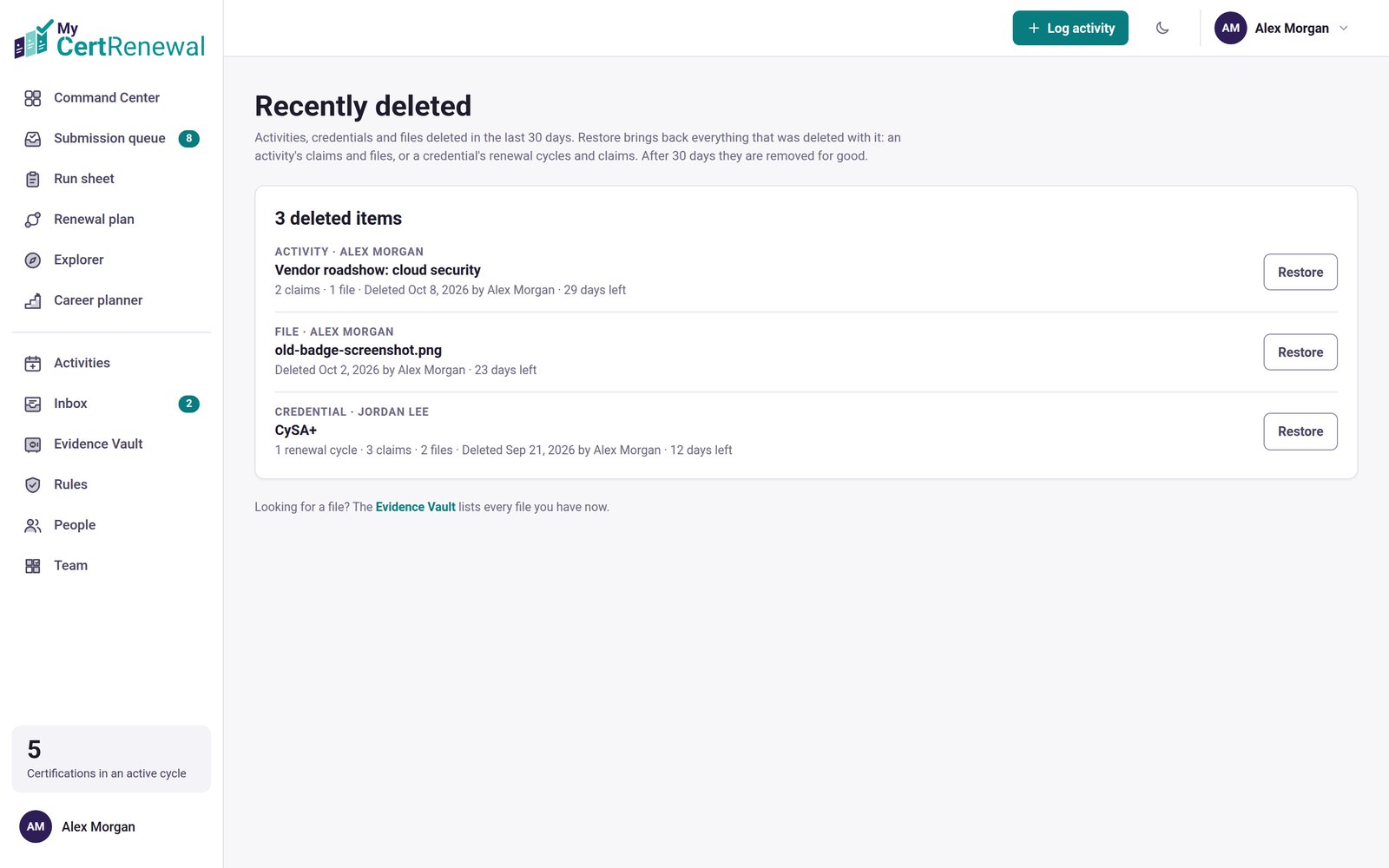
Find the item. Each one shows what it was, who deleted it and how many days are left.
Select Restore. Everything deleted with it comes back too: an activity’s claims and files, or a credential’s cycles and claims.
Recently deleted, with Restore.
Good to know
Deleted items stay in Recently deleted for 30 days. After that they are removed for good.
Still stuck? Email [email protected] and tell us what you were trying to do.
Certification renewal and CPE/CEU tracking for IT and security professionals who hold more than one certification. MyCertRenewal is a ConsultraCloud product.
App screens show sample data. All trademarks belong to their respective owners. MyCertRenewal is not affiliated with or endorsed by ISC2, CompTIA, EC-Council, ISACA, Cisco, Credly, Amazon Web Services or Microsoft.