Help Center / Logging activities

Log an activity

Applies to: All plans · Last updated October 8, 2026

Log a conference, webinar, course or other activity once. MyCertRenewal checks it against every certification you hold and shows where it can count, each by its own certifying body’s rules.

Log it

  1. Select Log activity in the header (Log on a phone).
  2. Enter a Title, choose the Person (on a team account) and the Type, such as Conference.
  3. Add the Start date. For a multi-day event, add the End date too.
  4. Enter the Qualifying hours: educational time only. Leave out meals, the expo floor and networking.
  5. Answer Is the content about information security? with Yes, security content or No, general professional development. Not sure yet holds back ISC2 and EC-Council until you answer, which you can do later on the activity page.
  6. Write the Description in the first person. It becomes the text you paste into the certifying body’s portal.
  7. Open More details to add the Provider / host, Your total time (including travel) and the Cost.
  8. Check Where this counts. Each certification the activity can count toward has a row with the credit and the reason, and a checkbox to include it. Claim the ones that clearly count (the button shows how many) ticks every row that counts with no condition.
  9. Each ticked certification shows its Category, Credits, Status and Notes. The status starts as Identified. Choose Ready if the category, credits and evidence are settled.
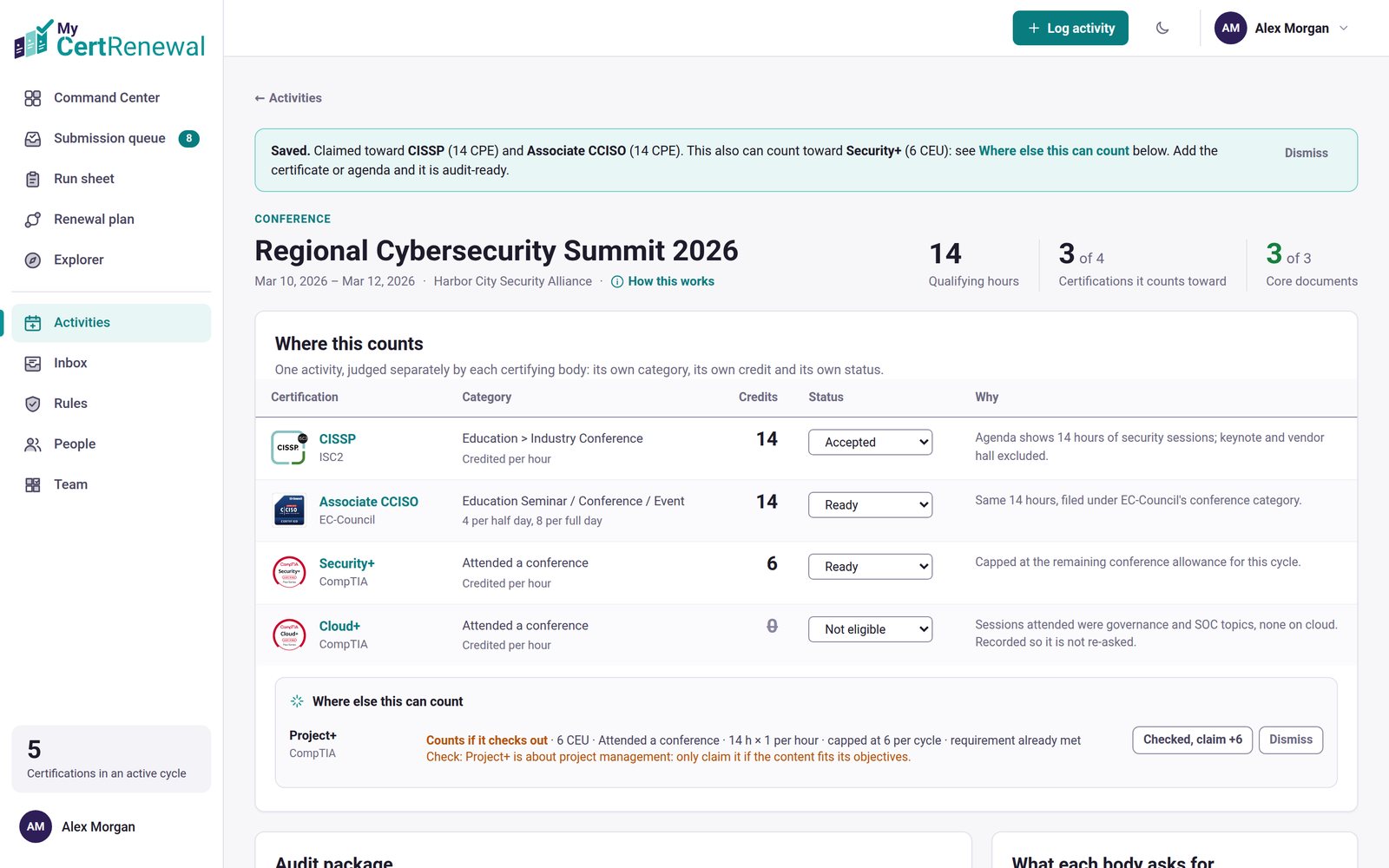
  10. Select Save activity (it shows how many claims, for example Save activity and 2 claims). The activity page opens with a note listing what was claimed and what else can count.
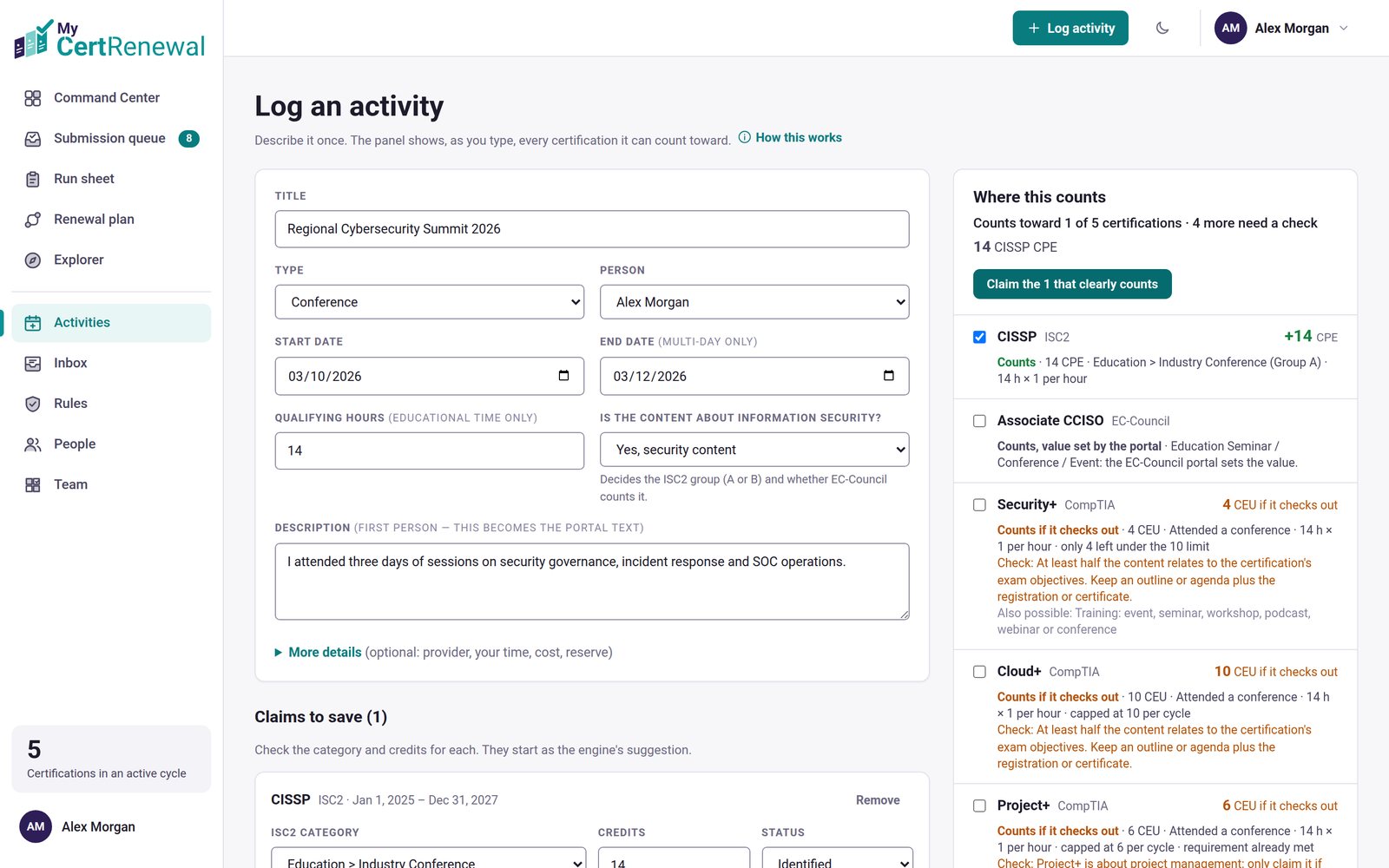
MyCertRenewal app screen: Log activity, with Where this counts beside the form.
Log activity, with Where this counts beside the form.
MyCertRenewal app screen: The activity page after saving, with the Saved note at the top.
The activity page after saving, with the Saved note at the top.

On Pro, Team and Compliance, you can also start from the certificate instead of typing: see Start from a certificate or confirmation.

Where the panel sits

On a computer, Where this counts sits beside the form. On smaller screens it sits below, and on a phone a bar pinned to the bottom shows the summary.
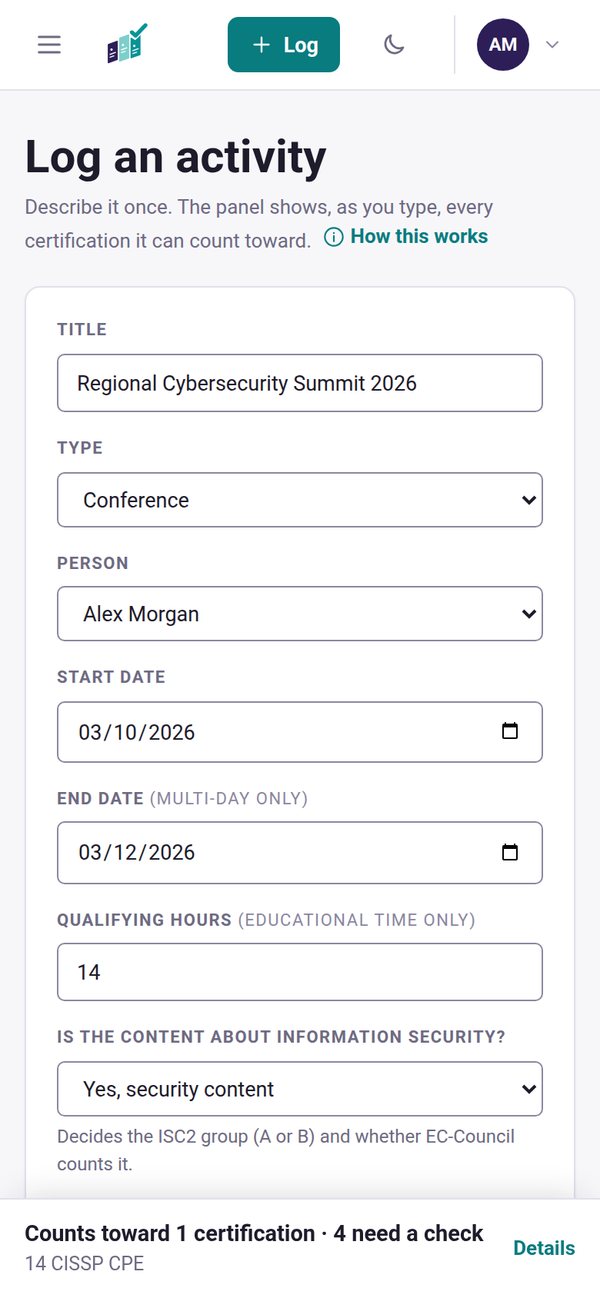

MyCertRenewal app screen: On a phone, the summary sits in a bar at the bottom.
On a phone, the summary sits in a bar at the bottom.

Good to know

  • Rows that only count if a condition holds, such as CompTIA’s rule that at least half the content must relate to the exam objectives, say Counts if it checks out. They are left out of your totals until you confirm them, by ticking the row or later with Checked, claim on the activity page.
  • Answering Yes, security content also lets found credit suggest CompTIA and ISACA claims for this activity later.
  • For a presentation or teaching, a Preparation hours field appears. ISC2 credits the preparation, not the delivery.
  • Add your evidence (certificate, agenda, registration) to the activity’s audit package so each claim is ready if you are audited.

Still stuck? Email [email protected] and tell us what you were trying to do.

Related articles

What the statuses and labels mean

Add evidence: the audit package

The portal description and how to use it

Track it all in one place

MyCertRenewal lets you log an activity once and see the credit it earns at each certification it applies to. Start free with up to 2 certifications.

Certification renewal and CPE/CEU tracking for IT and security professionals who hold more than one certification. MyCertRenewal is a ConsultraCloud product.

MyCertRenewal is a ConsultraCloud product.

App screens show sample data. All trademarks belong to their respective owners. MyCertRenewal is not affiliated with or endorsed by ISC2, CompTIA, EC-Council, ISACA, Cisco, Credly, Amazon Web Services or Microsoft.

© 2026 ConsultraCloud. All rights reserved.