Applies to: Pro, Team and Compliance · Last updated October 12, 2026
Instead of typing an activity in, start from the document that proves it. The form fills in what the document states and shows the exact text it relied on. You check everything and save.
Upload a certificate or confirmation
Open Log activity. You can also get there from Log from a certificate in the Command Center’s quick actions, or the button on the Activities page.
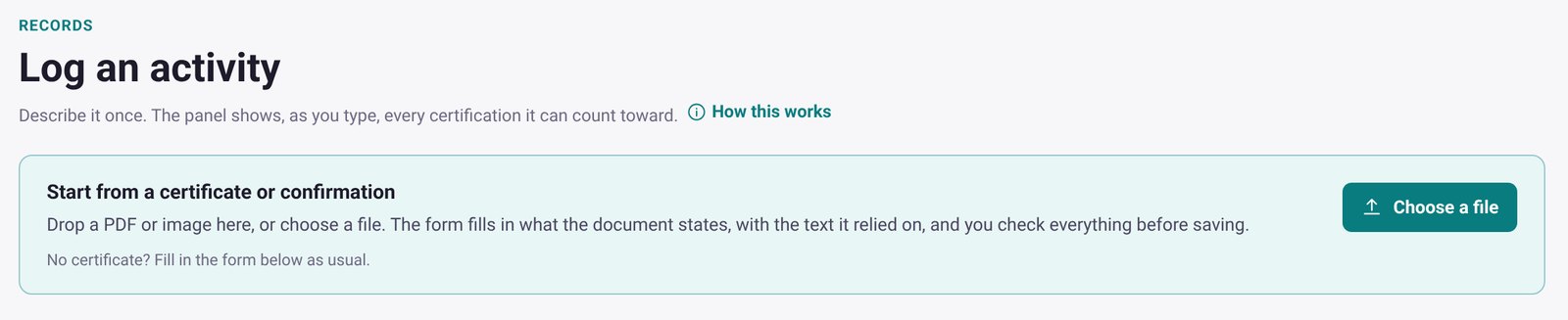
Drag a PDF or image onto Start from a certificate or confirmation, or select Choose a file.
The panel at the top of Log activity. Drag a file onto it, or choose one.
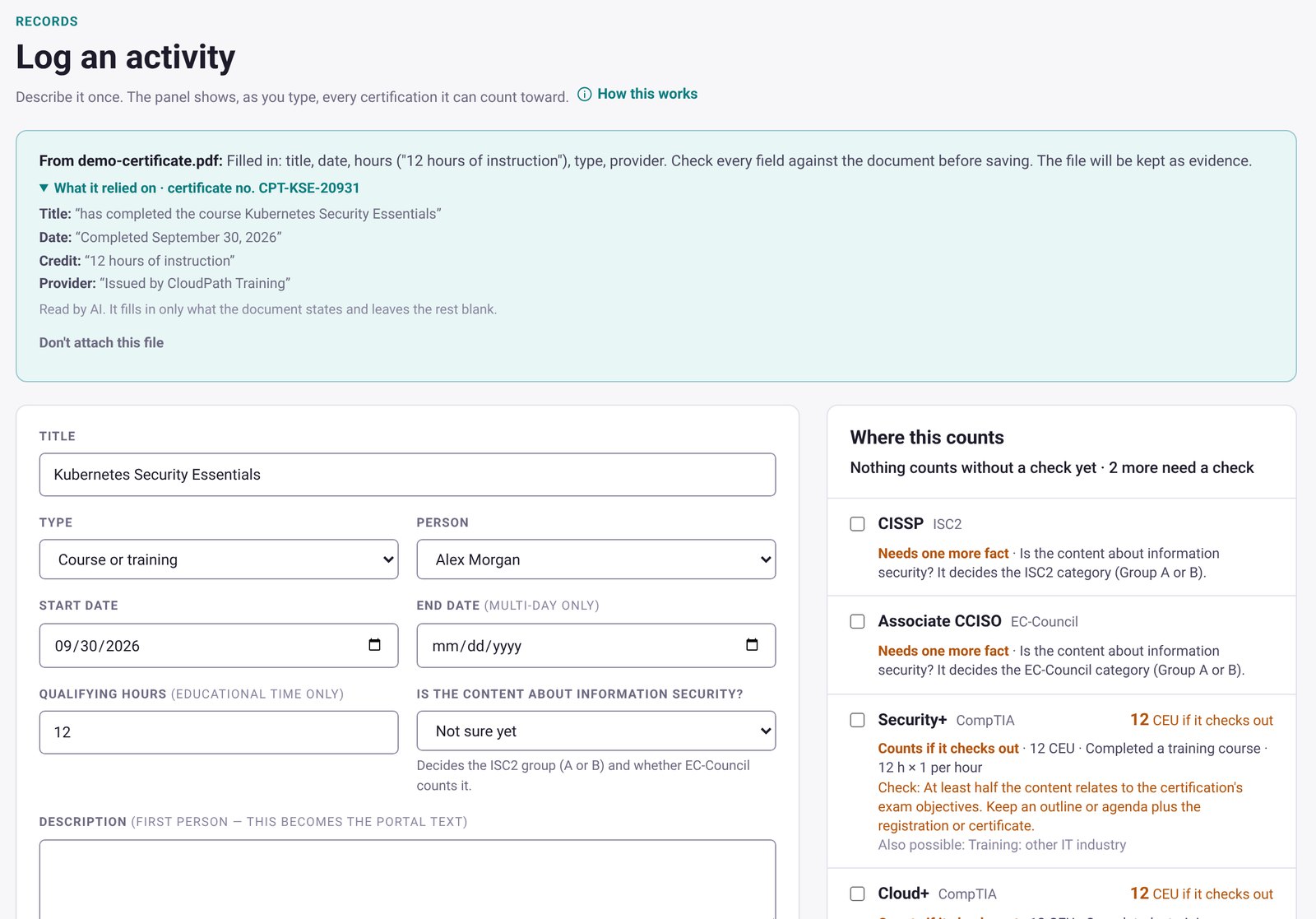
The form fills in the title, date, hours, type and provider the document states. A note at the top lists what was filled in.
Open What it relied on to see the exact text used for each field. Check every field against the document.
Complete anything left blank, then save. The file is kept as evidence. If you don’t want it kept, select Don’t attach this file before you save.
Where this counts then shows every certification the activity can count toward, and anything that needs a check.
The form filled in from a sample certificate, with the text it relied on. Fictional demo data.
Nothing is added to your records until you check it and save.
Forward an email instead
Forward a registration or certificate email to your intake address. The email and its PDF or image attachments are read, and the draft waits in your Inbox under Waiting for review. Select Review and log to open it and check it. Your intake address is shown at the top of the Inbox page. See Forward an email to your Inbox for the details and limits.
What it’s careful about
If the document doesn’t state something, that field stays blank.
It flags a registration confirmation that proves you signed up but not that you attended.
It flags a certificate made out to someone else.
It never turns a range like “up to 8 CPE” into a number of hours.
It doesn’t decide what credit you’ll get. Certifying bodies decide what they accept.
How your documents are read
On Pro, Team and Compliance, AI reading is on unless your workspace owner turns it off in Profile > Organization (“Reading documents with AI”). If you use MyCertRenewal on your own, that’s you. On a team, only the owner can change it; other members can see it.
When it’s on, documents you upload here and emails you forward, including their attachments, are sent to Anthropic to read. Anthropic doesn’t use them to train its models and deletes them within 30 days, unless it must keep them longer as required by law or to enforce its usage policy. Details are in section 6 of our Privacy Policy.
When it’s off, forwarded emails are read by our own servers using fixed rules, and documents aren’t sent to an AI provider.
Certificates you add to your credentials (Profile > Credentials) are read in your browser and never sent to an AI provider.
On the Free plan
You’ll see the panel with a Pro tag. You can still log any activity by filling in the form. See plans.
What Free users see.
Still stuck? Email [email protected] and tell us what you were trying to do.
Certification renewal and CPE/CEU tracking for IT and security professionals who hold more than one certification. MyCertRenewal is a ConsultraCloud product.
App screens show sample data. All trademarks belong to their respective owners. MyCertRenewal is not affiliated with or endorsed by ISC2, CompTIA, EC-Council, ISACA, Cisco, Credly, Amazon Web Services or Microsoft.