Applies to: All plans · Last updated October 8, 2026
MyCertRenewal uses two sets of words: labels that read the rules while you log, and claim statuses that track where each claim stands with the certifying body.
While you log: what the rules say
These appear in Where this counts on Log activity and in Where else this can count on the activity page.
Counts: counts under the rules, with the credit and category shown. No condition to check.
Counts if it checks out: can count if the condition shown as “Check: …” holds. Left out of totals until you confirm it.
Counts, value set by the portal: the category fits, but the certifying body’s portal sets the credit, so no number is shown.
Needs one more fact: answer a question first, usually the security question or preparation hours.
At its limit: the category or group limit for this cycle is already reached.
Does not count: no category at that certifying body fits this activity.
Outside the cycle: the activity date falls outside that certification’s renewal cycle.
Summaries such as “4 more need a check” include both Counts if it checks out and Counts, value set by the portal.
Claim statuses: where a claim stands
These appear on the activity page, the cycle page and the submission queue.
Identified: a possible claim. Category, credits or evidence still unsettled.
Planned: intended, but the activity has not happened yet.
Ready: category, credits and evidence settled. Ready to submit in the certifying body’s portal.
Submitted: submitted to the certifying body, awaiting a decision.
Accepted: recorded by the certifying body. Counts toward the requirement.
Rejected: refused by the certifying body.
Withdrawn: pulled back before a decision.
Not eligible: does not count for that certification. Recorded with the reason so it is not suggested again.
Change a claim's status
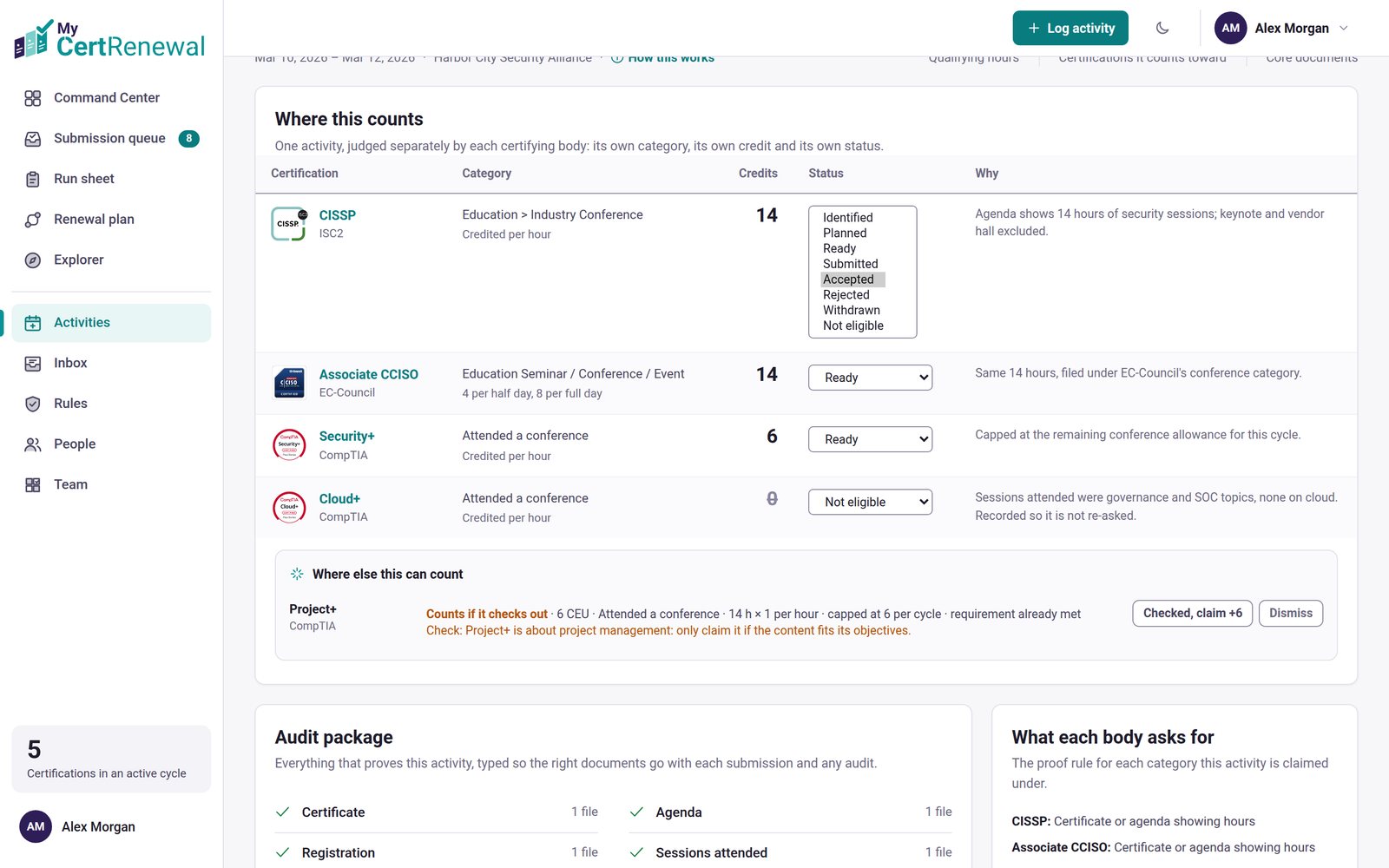
On the activity page, use the claim’s Status menu in Where this counts.
On the cycle page, use the claim’s Move to menu.
After a portal session, the Run sheet marks a batch of claims Submitted in one step.
When you mark a claim Accepted, the decision date is recorded automatically. With Pro, Portal check on the cycle page can Mark accepted for submitted claims the portal shows as approved.
Dismiss on the activity page or the renewal plan records a Not eligible claim with your reason.
The Status menu on the activity page, shown expanded.
Good to know
Nothing is added to a certification until you choose it, and MyCertRenewal never submits anything for you. You file each claim in the certifying body’s portal.
Still stuck? Email [email protected] and tell us what you were trying to do.
Certification renewal and CPE/CEU tracking for IT and security professionals who hold more than one certification. MyCertRenewal is a ConsultraCloud product.
App screens show sample data. All trademarks belong to their respective owners. MyCertRenewal is not affiliated with or endorsed by ISC2, CompTIA, EC-Council, ISACA, Cisco, Credly, Amazon Web Services or Microsoft.